
During the initial setup you will walk through the various steps to get your tool operational
Step 1
WiFi Settings – This requires you to select and connect to your WiFi network of choice and is a required step during initial setup. You can select Automatic for the tool to look for available networks, or select manual if you are choosing a hidden network to connect to.

Step 2
BMIS Credentials – The Nissan/Infiniti credentials are pre-loaded into the tool and do not need modification.
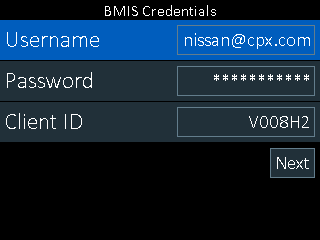
If the BMIS credentials were somehow erased, please enter the following:
| Username | Password | Client |
| nissan@cpx.com | NissanMdx1! | V008H2 |
Location ID – Enter your dealer/location ID
Shop Info – Once your dealer/location ID is entered, the tool will pull the physical location information from our database for the user’s confirmation. Please confirm by selecting the right key on the keypad. Selecting left will take you back to change the location ID entered.
Step 3
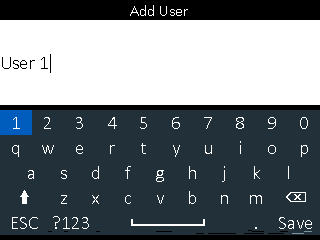
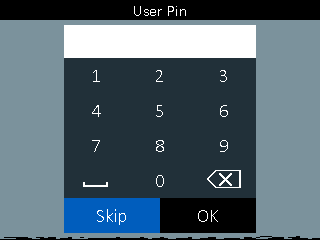
Add User – The tool will require you to set up the initial user who will be established as the Admin account. You also will select a PIN number for access to the Admin user.
Step 4
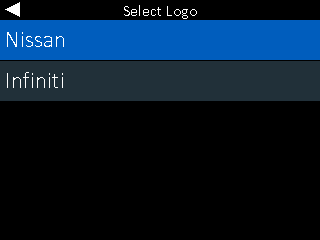
Select Logo – Choose the brand of your dealership, Nissan or Infiniti. If you select incorrectly, you can change later in the settings and display options.
Step 5
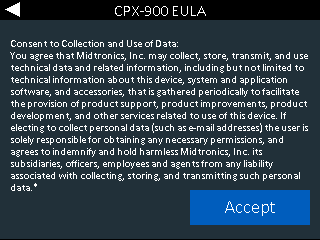
CPX-900 EULA – This is a consent to collect and use data being sent by the tool.
Step 6
Home Screen – You have completed the tool setup and are now able to use the tool for battery testing


